

- Group
- Placement
- Notifications
- System
- Categories
- Props
GroupId = 14665139, -- Roblox group ID
Permissions = {
	Regular = {
		UserIds = {}, -- Users who get regular access by UserId
		RoleIds = {}, -- Ranks (roles) that get regular access
	},
	Admins = {
		UserIds = {}, -- Users who get admin access by UserId
		RoleIds = {255}, -- Ranks (roles) that get admin access
	},
},
GroupId is not required. You can simply set this to
0, and rely on using UserIds for the system. You do not need a group ID for the system to function.- Regular is just simple access to using the system, and is restricted by configuration like maximum props, cooldown
- Admins is unrestricted access to the system, so no cooldowns, no maximum prop count, and so on
RoleIds = {1, 2, 3, 4, 5, 6, 255} - anyone with these role IDs will be assigned to that permission typeMaxProps = 3, -- Max props a single player can place
PlacementDistance = 50, -- Max distance (studs) player can place from character
ContinuousPlacement = true, -- After placing, automatically start placing the same prop again
PreserveRotation = true, -- Keep last used rotation when selecting a new prop
- MaxProps: defines the maximum number of props a player can place (with regular permissions)
- PlacementDistance: defines the maximum distance (in Roblox studs) a player can place a prop from their character
- ContinuousPlacement: when set to
true, you will be able to continue placing your props after placing another. When set tofalse, it will stop placement flow after placing a single prop - PreserveRotation: when set to
true, the previous rotation of a prop you have just placed will be kept. For example, if you rotate a prop 90 degrees, and this setting is enabled, it will then keep that same orientation for the next prop in the placement flow
GridSize = 0, -- Grid snapping (0 = disabled)
Cooldown = 1, -- Number of seconds to wait before placing again
RotationIncrement = math.rad(15), -- Degrees to rotate
ValidColour = Color3.fromRGB(56, 163, 44), -- Highlight colour when placement is valid
InvalidColour = Color3.fromRGB(255, 71, 71), -- Highlight colour when placement is invalid
- GridSize: this is the amount at which the prop “snaps” to the surface. For example, a grid size of
0allows for smooth placement, however a grid size of2will be more snappy and placed studs apart - Cooldown: number of seconds to wait before placing again (prevents spam)
- RotationIncrement: the number of degrees to rotate when you press
R(or the rotate keybind/button). If set to90, the prop will rotate 90 degrees each time. To edit this, just simply replace the15, so it would look like the following when setting to 90:math.rad(90) - ValidColour: this is the colour that the prop will be highlighted in when a placement is considered valid by the system. To change this, get an RGB colour code (colour picker here) and replace the colour inside the brackets, for example:
Color3.fromRGB(48, 105, 63)for a more darker green - InvalidColour: this is the colour that the prop will be highlighted in when a placement is considered invalid by the system. To change this, get an RGB colour code (colour picker here) and replace the colour inside the brackets, for example:
Color3.fromRGB(79, 6, 7)for a more darker red
ServerPropLimit = {
	Enabled = true, -- Enable global server prop limit
	MaxProps = 5, -- Maximum total props allowed on entire server
},
PropAutoDelete = {
	Enabled = true, -- Auto delete props after a duration
	Duration = 300, -- Seconds before a placed prop is removed (e.g 300 = 5 mins)
},
HidePropsOnDistance = {
	Enabled = true, -- Hide distant props to improve performance
	Distance = 100, -- Distance (studs) at which props get hidden
	Interval = 1, -- How often to check visibility in seconds (s)
},
AccessMethod = "Button", -- "Tool", "Button", or "Both" - how players can access the system
- ServerPropLimit: when Enabled is set to
true, there will be a maximum number of props all players using Placeables will have to abide by. When theMaxPropsis reached, there will be a notification displayed to users saying the `has been reached - PropAutoDelete: when Enabled is set to
true, all props a player places will be automatically deleted after the time taken reaches theDuration. For example, 300 seconds is 5 minutes, so after 5 minutes, the props a user places will be removed. This can be useful for events - HidePropsOnDistance: when Enabled is set to
true, the system will automatically hide any props further than theDistanceset (100) to the character. This is the number of studs at which props are hidden. This can help with streaming and performance, limiting the number of props visible to the player, especially if you have a high amount. TheIntervalis the number of seconds the system waits to check visibility for the client - AccessMethod
Button: this shows a “View Props” button near the toolbarTool: this is a tool available in the player’s backpack, when equipped the system will be visibleBoth: the system will show a button and a tool for the player to choose
Notifications = {
	Enabled = true, -- Enable notification messages
	Config = {
		UndoPlacement = true, -- Show notification when undoing
		PlaceProp = true, -- Show notification when placing
		DeleteProp = true, -- Show notification when deleting
		DeletedAll = true, -- Show notification when  deleting all props
		MaximumReached = true, -- Show when max props reached
		InvalidPlacement = true, -- Show when placement is invalid
		Cooldown = true, -- Show cooldown warning
		ServerLimitReached = true, -- Show when server limit is reached
		NothingToUndo = true, -- Show when there's nothing to undo
	}
},
true, all notification messages will be automatically enabled. You can toggle each specific notification from the Config table below it.- For example, you can disable the notification that alerts players when they delete a prop, by changing
DeleteProp = true,toDeleteProp = false,. It’s important to keep the commas consistent when editing configuration tables
PropsLocation = game:GetService("ReplicatedStorage")["Init-Placeables"].Props, -- Folder containing the props
PropSaving = {
	Enabled = false, -- Save placed props to DataStore
	DataStoreName = "PlaceablesProps26", -- Name of the datastore
	SaveInterval = 5, -- How often to auto save
},
Keybinds = {
	ConfirmPlacement = Enum.UserInputType.MouseButton1, -- Left click to place (double tap for mobile)
	ChangeCategory = Enum.KeyCode.C, -- Change category
	NextProp = Enum.KeyCode.E, -- Next prop in list
	PreviousProp = Enum.KeyCode.Q, -- Previous prop in list
	RotateProp = Enum.KeyCode.R, -- Rotate current prop
	ResetRotation = Enum.KeyCode.T, -- Reset rotation to 0
	RemoveAll = Enum.KeyCode.L, -- Delete all your props
	CancelPlacement = Enum.UserInputType.MouseButton2, -- Right click to cancel
	UndoPlacement = Enum.KeyCode.Z, -- Undo last placement
	EditMode = Enum.KeyCode.X, -- Toggle edit mode
},
- PropsLocation: the folder which the Props is located, you will likely never need or want to touch this
- PropSaving: props will be saved, which means if you place a prop down, leave the game and rejoin, it will still be in the same position and orientation. Edit mode will still be available for these props
- When Enabled is set to
true, props will be saved to a designated DataStore - This DataStore name should be configured under
DataStoreName, and can be any string, for example:DataStoreName = "propsaving94134", SaveIntervalis how many seconds to autosave the props. It’s recommended to have this at60seconds (1 minute) to avoid overloading
- When Enabled is set to
Keybinds
You can set custom keybinds for specific actions, for example confirming a placement can be done by pressing a key rather than your mouse
How to change a keybind?
- You must keep the
Enum.KeyCodesection of the keybind allocation, this is vital - In Roblox Studio, if you remove the original keycode, and begin typing, it will show a popup box allowing you to look at all of the keycodes available. Alternatively, you can just type the keycode in
- For example, going from
ChangeCategory = Enum.KeyCode.CtoChangeCategory = Enum.KeyCode.G
For help on keycodes, please visit Roblox’s documentation
How to change a button?
- You must keep the
Enum.UserInputTypesection of the button allocation - In Roblox Studio, if you remove the original input type, and begin typing, it will show a popup box allowing you to look at all of the options available
- For example, going from
ConfirmPlacement = Enum.UserInputType.MouseButton1toConfirmPlacement = Enum.UserInputType.MouseButton2
For help on user input types, please visit Roblox’s documentation
Keybinds
ConfirmPlacement: set to MouseButton1 by default, which is the left click. For mobile users, they will be required to DOUBLE TAP in order to placeChangeCategory: set toCby default, when this keybind is pressed, the category will change (if any are available)NextProp: this will switch to the next prop available for the user, and will cycle through the interface. Set toEby defaultPreviousProp: this will switch to the previous prop for the user, and will cycle through the interface. Set toQby defaultRotateProp: this will rotate the current prop at the number of degrees previously specified in theRotationIncrementsettingResetRotation: this will reset the orientation of the current prop you’re about to place to 0, helpful if you don’t want to rotate at the current orientation. Set toTby defaultRemoveAll: this will delete all of your props, with a popup confirmation beforehand. Set toLby defaultCancelPlacement: this will cancel the placement, set toMouseButton2by default- If you’d like to change this to a keybind, change
CancelPlacement = Enum.UserInputType.MouseButton2,to something likeCancelPlacement = Enum.KeyCode.V,- make sure to keep the comma in place
- If you’d like to change this to a keybind, change
UndoPlacement: deletes the last prop you placed, in order, so if you placed a Chair, Box, Table, it will remove Table, then Box, then Chair if you were to press this keybind 3 times. Set toZby defaultEditMode: disables placement flow and allows you to click on any of the props that you own (or have permission to edit), to delete, move or copy it. Set toXby default
How do I add a new category?
- Copy the template below
Name = {
	Teams = {}, -- Teams allowed to use this category
	Ranks = {} -- Ranks allowed to use this category
},
- Place it under the categories that already exist in the configuration, so it looks like the following:
Config.Categories = {
	Construction = {
		Teams = {}, -- Teams allowed to use this category
		Ranks = {255} -- Ranks allowed to use this category
	},
	Office = {
		Teams = {}, -- Teams allowed to use this category
		Ranks = {}, -- Ranks allowed to use this category
	},
	Name = {
		Teams = {}, -- Teams allowed to use this category
		Ranks = {} -- Ranks allowed to use this category
	},
}
- Then simply edit the Name by changing
Nameto whatever you want, likeOutdoororClassroom
How do I edit a category’s permissions?
- To add a new team, simply put the team name inside the
Teams = {},table. You must have the team in your actual game and name it correctly here. - Let’s say we have a team called
Site Staff, and we want them to be able to use the Construction category - Simply type
"Site Staff"in the Teams section of the category, so Construction now looks like this:
Config.Categories = {
	Construction = {
		Teams = {"Site Staff"}, -- Teams allowed to use this category
		Ranks = {255} -- Ranks allowed to use this category
	},
	Office = {
		Teams = {}, -- Teams allowed to use this category
		Ranks = {}, -- Ranks allowed to use this category
	},
}
Adding a new rank to a category
- To add a new rank ID, simply just type in the role ID inside the
Ranks = {},table. Any users with this rank ID will be permitted to use the category - Let’s say we have a role ID numbered
200, and we want to add it to the Construction category, which already has255in the Ranks (in this example) - Simply add
200to the Ranks section, as shown below
Config.Categories = {
	Construction = {
		Teams = {}, -- Teams allowed to use this category
		Ranks = {255, 200} -- Ranks allowed to use this category
	},
	Office = {
		Teams = {}, -- Teams allowed to use this category
		Ranks = {}, -- Ranks allowed to use this category
	},
}
Adding a new prop
Let’s use the props table below as an example:Config.Props = {
{
Name = "Barrier",
Model = Config.Settings.PropsLocation.Barrier,
Category = "Construction",
},
}
- Copy the template below, and add it underneath the most previous prop, which in this example is
Barrier
{
	Name = "Example",
	Model = Config.Settings.PropsLocation.Example,
	Category = "Construction",
},
- Now, our props table looks like this:
Config.Props = {
	{
		Name = "Barrier",
		Model = Config.Settings.PropsLocation.Barrier,
		Category = "Construction",
	},
	{
		Name = "Example",
		Model = Config.Settings.PropsLocation.Example,
		Category = "Construction",
	},
}
- You can edit the name of the prop under the
Namesection - The
Modelmust be pointing to the name of the actual object (union, part, model), found under the Props folder. The props folder is located underPlaceables-jawhen you load in the product, as seen belowAll props that you add to the system must be under the Props folder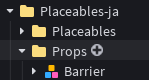
- You can change the Category by editing the
Categorysection to match one of your categories found inCategories
Add a prop with a space in the instance name
If you have a prop with a space in the instance (model) name, then set it to the following when identifying the location of the modelFor example:{
Name = "White Box",
Model = Config.Settings.PropsLocation["White Box"],
Category = "Office",
},