

- Group
- Message
- Commands
- Filtering
- Misc
- Customisation
- Automation
- Scheduled Messages
GroupId = 0, --<< A Roblox group id
RoleIds = {1, 255}, --<< Every role id that will have permission to edit the message and modify settings
RoleIds = {1, 2, 3, 4, 5, 6, 255}DefaultMessage = "Replace this with a message", --<< Server startup message
"" will appear as the default message when the server starts upCommandPrefix = "!", --<< Command prefix (can be anything)
SetCommand = "setmessage", --<< Command to set the message
NotifyCommand = "notify", --<< Command to notify all users
ClearCommand = "clearmessage", --<< Command to clear the message
!setmessage TEXT HERE” in chat, followed by the textYou can edit the SetCommand, NotifyCommand, and ClearCommand to anything you wantFor example, I can change the SetCommand from "setmessage" to "set"SetCommand = "set", --<< Command to set the message
FilterEnabled = true, --<< Enable or disable message filtering (we are not responsible if your game is moderated)
HarshFilter = false, --<< When set to true, numbers and combinations of letters could be flagged by Roblox automatically ->>
- When FilterEnabled is set to
true, the Roblox chat filter will automatically apply for any messages that appear. - When FilterEnabled is set to
false, it could put your Roblox game at risk of being moderated, however it could be unlikely unless reported or flagged
We are not responsible if your game is taken down for not having the filter enabled
Cooldown = 3, --<< Cooldown between setting messages again (affects the entire server)
-
You can change the cooldown to any amount of seconds (including
0) - When a message is sent, the cooldown will be active until that number of seconds runs out, which prevents all other administrators from submitting updates to the banner
-
You can set the cooldown to
0if you wish for there to be no delay between updating messagesCooldown = 0, --<< Cooldown between setting messages again (affects the entire ser
ServerTimezone = "BST", --<< Server wide timezone (check the list of available timezones at the bottom)
MultipleServers = true, --<< Enable or disable the ability to have messages be communicated across servers

WebhookUrl = "", --<< Discord webhook URL (leave blank if not in use)
true, the system will automatically send any messages or updates to settings across all servers in your gameWebhookUrl is a discord webhook URL from a channelServerTimezone is similar to Vision, where you can enter a specific timezone.These timezones will be available at the bottom of the configuration, and also found here:Timezones
GMT - Greenwich Mean TimeBST - British Summer Time
UTC - Coordinated Universal Time
CET - Central European Time
CEST - Central European Summer Time
EET - Eastern European Time
EEST - Eastern European Summer Time
ET - Eastern Time
EST - Eastern Standard Time
EDT - Eastern Daylight Time
CT - Central Time
CST - Central Standard Time
CDT - Central Daylight Time
MT - Mountain Time
MST - Mountain Standard Time
MDT - Mountain Daylight Time
PT - Pacific Time
PST - Pacific Standard Time
PDT - Pacific Daylight Time
IST - Indian Standard Time
JST - Japan Standard Time
AEST - Australian Eastern Standard Time
AEDT - Australian Eastern Daylight Time
ACST - Australian Central Standard Time
AWST - Australian Western Standard Time
Customisation = { --<< Customise the look of the system
	SelectedTheme = "Normal",
	TextColour = Color3.fromRGB(255, 255, 255),
	BorderColour = Color3.fromRGB(255, 255, 255),
	DefaultVisibility = true,
    BorderEnabled = true,
	ThemeColour = Color3.fromRGB(31, 34, 40),
	Transparency = 0,
	GhostMode = false,
	UIPosition = 1,
    NotificationSound = "rbxassetid://96867813755421",
	UIOffset = 0,
},
-
SelectedTheme: automatically set to
"Normal"There are no other themes available. When introduced, they will be included here -
TextColour: changes the colour of the message banner text
This must be a RGB colour, as shown below. You can edit this using Roblox’s built in colour picker
Color3.fromRGB(255, 255, 255) -
BorderColour: changes the colour of all elements with a border enabled
This must be a RGB colour, as shown below. You can edit this using Roblox’s built in colour picker
Color3.fromRGB(255, 255, 255) -
DefaultVisibility
When set to
true, the banner will automatically be visible when the server starts upWhen set toDefaultVisibility = true,false, you will not be able to view the message banner, but you can still click in the area where the banner is. You will still be able to interact with the banner as usualDefaultVisibility = false, -
BorderEnabled
When set to
true, it will enable all borders around visual elements
When set tofalse, it will disable all borers around visual elements -
ThemeColour: this is a specific theme colour that applies to all visual elements
This must be a RGB colour, as shown below. You can edit this using Roblox’s built in colour picker
Color3.fromRGB(255, 255, 255) -
Transparency: sets the transparency (see throughness) of the message banner
This can be between 0 and 1 e.g
0.5Transparency = 0.5, -
GhostMode
When set to
true, the entire banner will be invisible, except the message textWhen set toThe message banner will just have the text with no backgroundfalse, the banner will be reset to its original state, which depends on other configuration options -
UIPosition
When set to
1, it will be right at the top of the screen, as demonstrated below
2, it will be underneath the core Roblox UI, as demonstrated below
-
NotificationSound: this is a sound effect that plays when a notification occurs in the system
You can enter your own ID, or leave it asThe sound effect provided may not play until the licence owner obtains the sound effect from us (similar to Radiolink installation)
You can find the sound effect here: Promptly Sound Effect0NotificationSound = "rbxassetid://0", -
UIOffset
Adjusts the vertical (Y-axis) position of UI elements. Increase this value to move UI components further down the screen for custom placement.
Example 1:
UIOffset = 0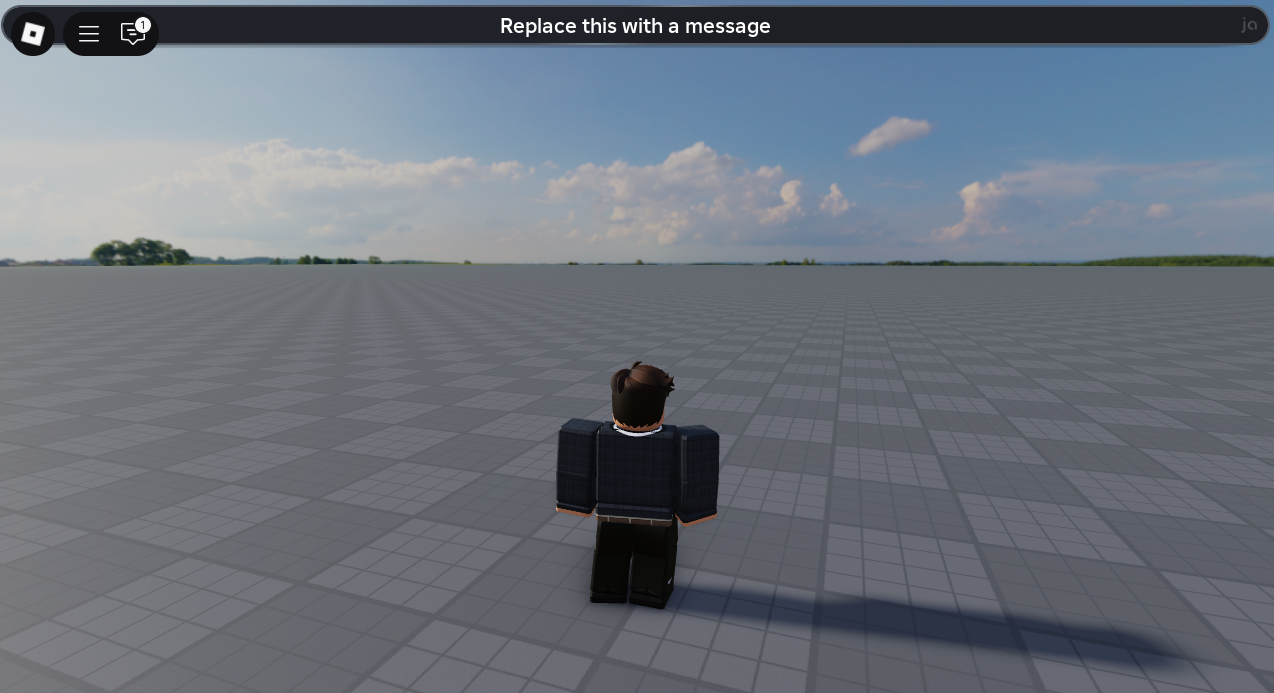
UIOffset = 25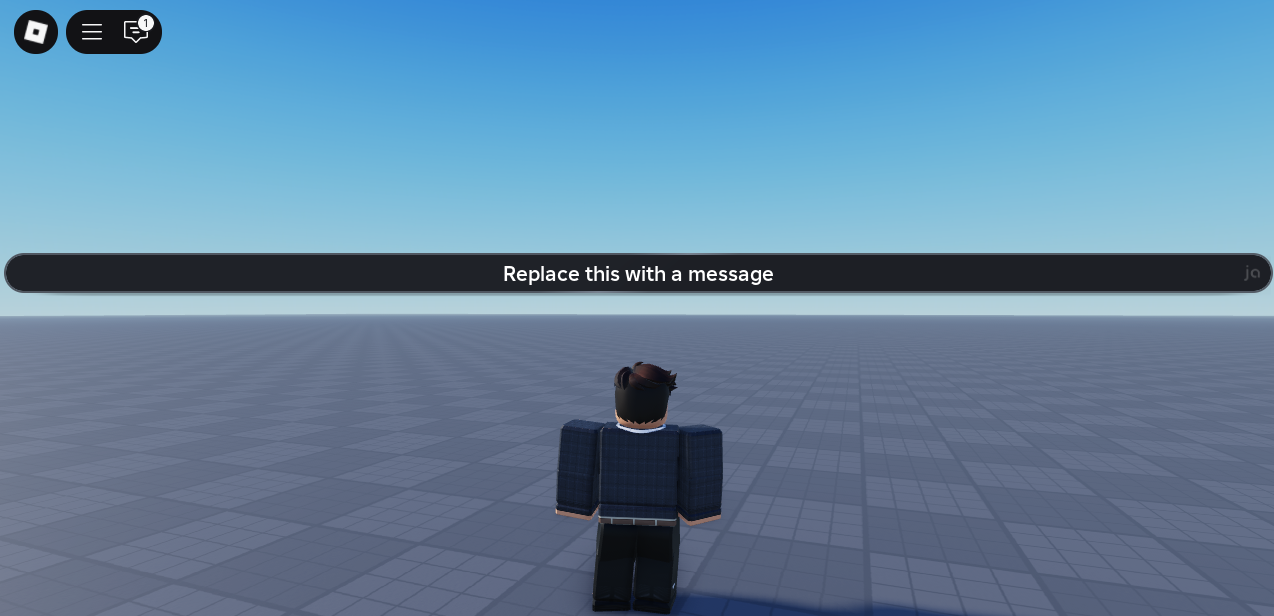
VisionPeriods = false, --<< When set to true, the system will automatically detect when Vision periods take place, and will update the banner
VisibleOnEvent = true, --<< When set to true, the banner will be visible when a Vision period or scheduled message happens
When set to
true, the system will detect when lessons occur on Vision MIS, and will update the banner in time for the lesson’s start timeVisibleOnEvent
When set to
true, the banner will be visible when a Vision period or scheduled message happens. For context, if the banner is not visible, it will make itself visible when a scheduled event occurs.By default, scheduled messages are not enabledTo make a new message, simply copy the message template below:Then, simply paste it underneath the previous message:
- You can have multiple messages that automatically send to everyone on the banner and will notify them at the time
- The messages will send at the specified time of the timezone that has been selected prior
ScheduledMessages = {
	Enabled = false,
	Messages = {
		{
			Title = "Welcome to the game",
			Time = "12:00",
			Message = "Message here",
		},
	}
}
{
	Title = "Hello",
	Time = "13:00",
	Message = "Message here",
},
ScheduledMessages = {
	Enabled = false,
	Messages = {
		{
			Title = "Welcome to the game",
			Time = "12:00",
			Message = "Message here",
		},
		{
			Title = "Hello",
			Time = "13:00",
			Message = "Message here",
		},
	}
}