> ## Documentation Index
> Fetch the complete documentation index at: https://docs.jadevelopment.co.uk/llms.txt
> Use this file to discover all available pages before exploring further.
# Dashboard
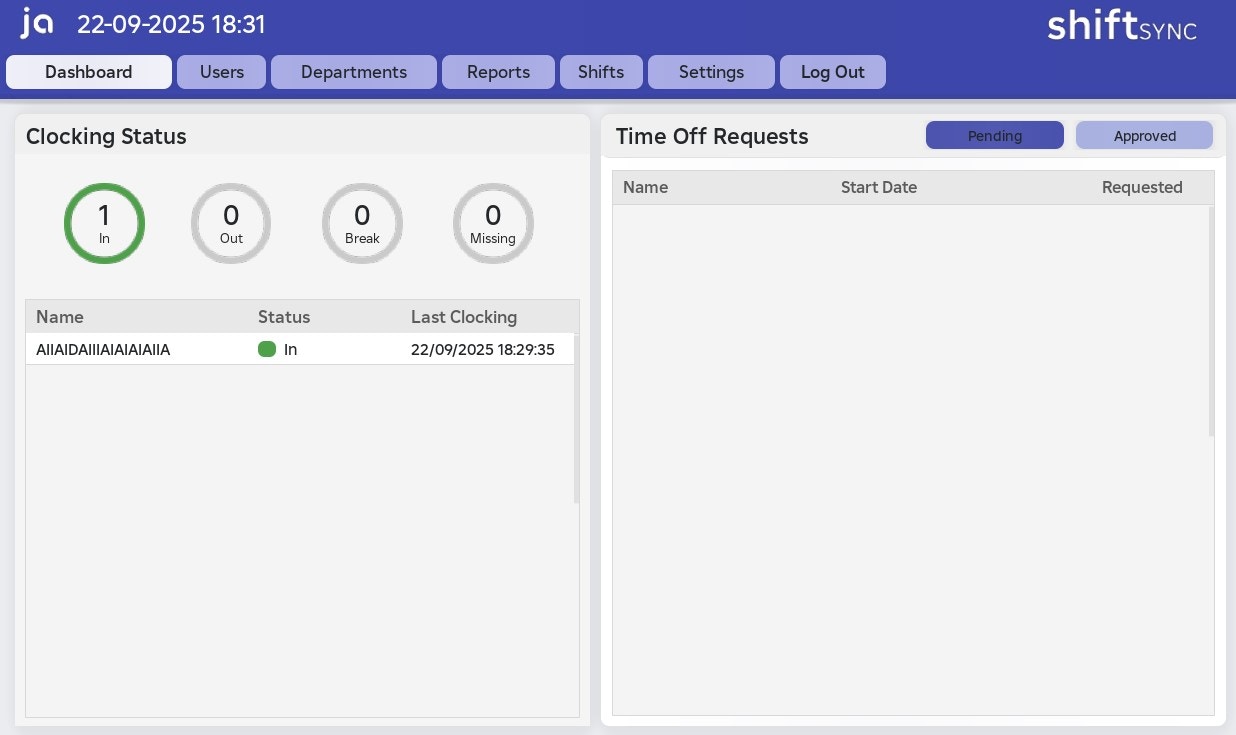
> The Dashboard provides real-time insights into staff activity, showing each team member’s current status and their last clock-in time. It also allows you to view and manage time off requests, displaying both pending and approved requests in one place.
 ## Clocking Status
The **Clocking Status** tab provides a real-time summary of all users on the system. It shows how many staff members are clocked in, clocked out, on breaks, or missing. You can also view a detailed list of each team member, including their current status and the exact time their status last changed.
This tab does not display all users on the system. It only shows anyone who has joined your game session, even if they have since left. **Note that this data resets when the server closes or restarts.**
## Time Off Requests
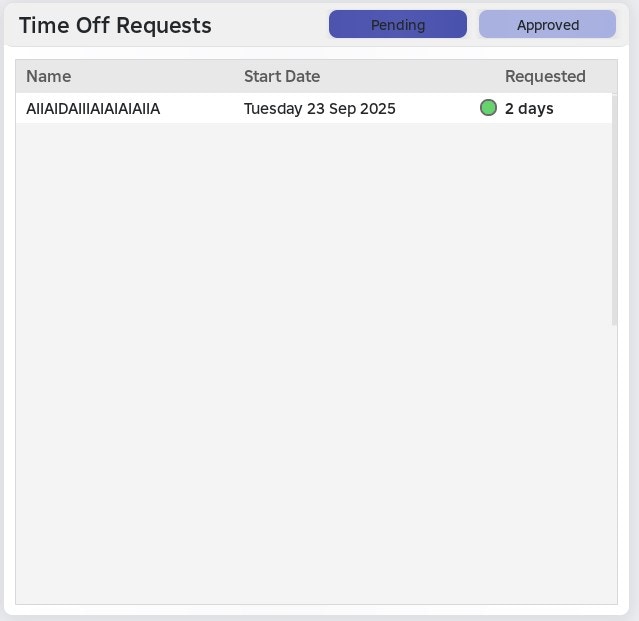
You can view all pending and approved time off requests. See how they appear on your dashboard below:
When a staff member submits a request, it will appear in the **Pending** section. Clicking the request will move it to the **Approved** section.
Once a request is approved, you \*\*cannot move it back to Pending \*\*status
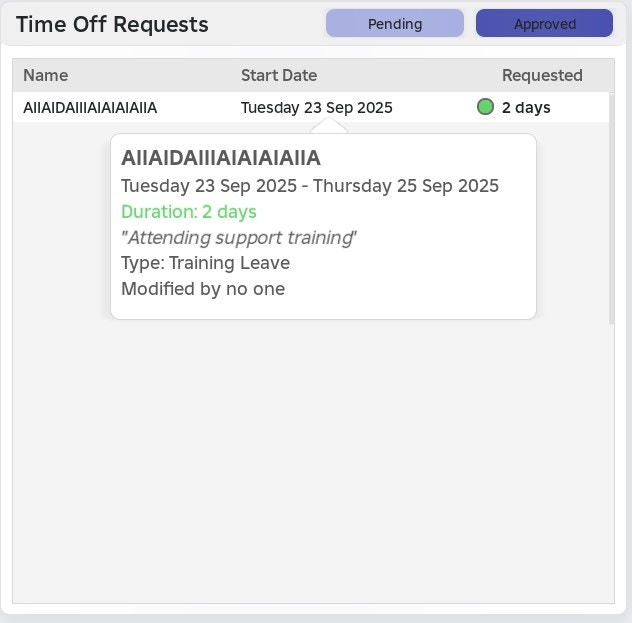
* You can also hover over a request to view its full details, including the start and end dates, duration, status, reason, and description.
## Clocking Status
The **Clocking Status** tab provides a real-time summary of all users on the system. It shows how many staff members are clocked in, clocked out, on breaks, or missing. You can also view a detailed list of each team member, including their current status and the exact time their status last changed.
This tab does not display all users on the system. It only shows anyone who has joined your game session, even if they have since left. **Note that this data resets when the server closes or restarts.**
## Time Off Requests
You can view all pending and approved time off requests. See how they appear on your dashboard below:
When a staff member submits a request, it will appear in the **Pending** section. Clicking the request will move it to the **Approved** section.
Once a request is approved, you \*\*cannot move it back to Pending \*\*status
* You can also hover over a request to view its full details, including the start and end dates, duration, status, reason, and description.
 Once a request is approved, it will appear in the **Approved** tab. You can hover over it to see all its details.
Once you click an approved request, it will be **entirely deleted from the system**
Once a request is approved, it will appear in the **Approved** tab. You can hover over it to see all its details.
Once you click an approved request, it will be **entirely deleted from the system**
 ## Users Dashboard
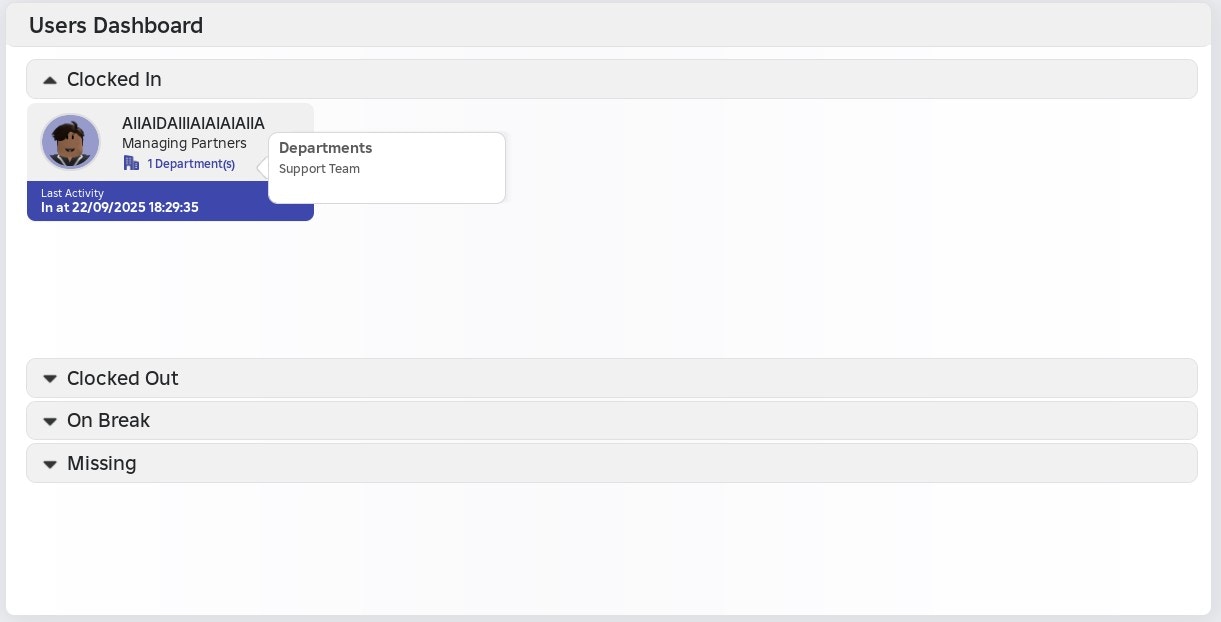
The **Users** page displays dropdown tabs for each status: **In**, **Out**, **On Break**, and **Missing**.
* The tab with the most users will be shown first, highlighting the most relevant information.
* **For each user in a given status, you can view:**
* Username and group rank
* Total number of departments and the names of each department
* Last registered activity
## Users Dashboard
The **Users** page displays dropdown tabs for each status: **In**, **Out**, **On Break**, and **Missing**.
* The tab with the most users will be shown first, highlighting the most relevant information.
* **For each user in a given status, you can view:**
* Username and group rank
* Total number of departments and the names of each department
* Last registered activity