> ## Documentation Index
> Fetch the complete documentation index at: https://docs.jadevelopment.co.uk/llms.txt
> Use this file to discover all available pages before exploring further.
# Installation
> Comprehensive instructions on how to set up Radiolink with your game. Follow on for step by step details on how to install the system correctly
## Getting started
You must enable **HTTP Requests** and **API Services** within the Game Settings tab in Roblox studio. This is located under the Security section. Please ensure this is enabled before opening a ticket with our support team
After downloading the product, you will be given an RBXM file. Drag this into the Workspace of your game
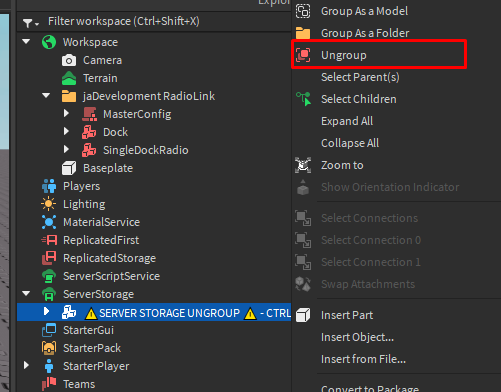
Drag the 'SERVER STORAGE UNGROUP' model into **ServerStorage**. Then, right click and press 'Ungroup' **OR** press CTRL+U when selecting the model
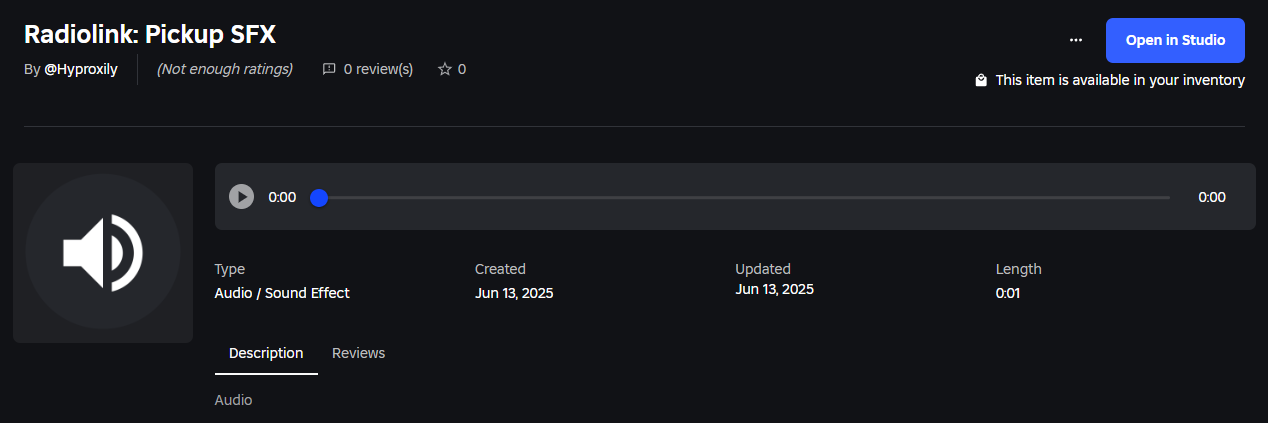
 Head to each of the links below, and click the **Get Audio** button to add them to your inventory\
[https://create.roblox.com/store/asset/120476404256367/Radiolink-Pickup-SFX\\\\](https://create.roblox.com/store/asset/120476404256367/Radiolink-Pickup-SFX\\\\)
[https://create.roblox.com/store/asset/119990098740860/Radiolink-Notification-SFX\\\\](https://create.roblox.com/store/asset/119990098740860/Radiolink-Notification-SFX\\\\)
[https://create.roblox.com/store/asset/136148474634635/Radiolink-Beep-SFX\\\\](https://create.roblox.com/store/asset/136148474634635/Radiolink-Beep-SFX\\\\)
[https://create.roblox.com/store/asset/129478418290516/Radiolink-Alert-SFX](https://create.roblox.com/store/asset/129478418290516/Radiolink-Alert-SFX)
Head to each of the links below, and click the **Get Audio** button to add them to your inventory\
[https://create.roblox.com/store/asset/120476404256367/Radiolink-Pickup-SFX\\\\](https://create.roblox.com/store/asset/120476404256367/Radiolink-Pickup-SFX\\\\)
[https://create.roblox.com/store/asset/119990098740860/Radiolink-Notification-SFX\\\\](https://create.roblox.com/store/asset/119990098740860/Radiolink-Notification-SFX\\\\)
[https://create.roblox.com/store/asset/136148474634635/Radiolink-Beep-SFX\\\\](https://create.roblox.com/store/asset/136148474634635/Radiolink-Beep-SFX\\\\)
[https://create.roblox.com/store/asset/129478418290516/Radiolink-Alert-SFX](https://create.roblox.com/store/asset/129478418290516/Radiolink-Alert-SFX)
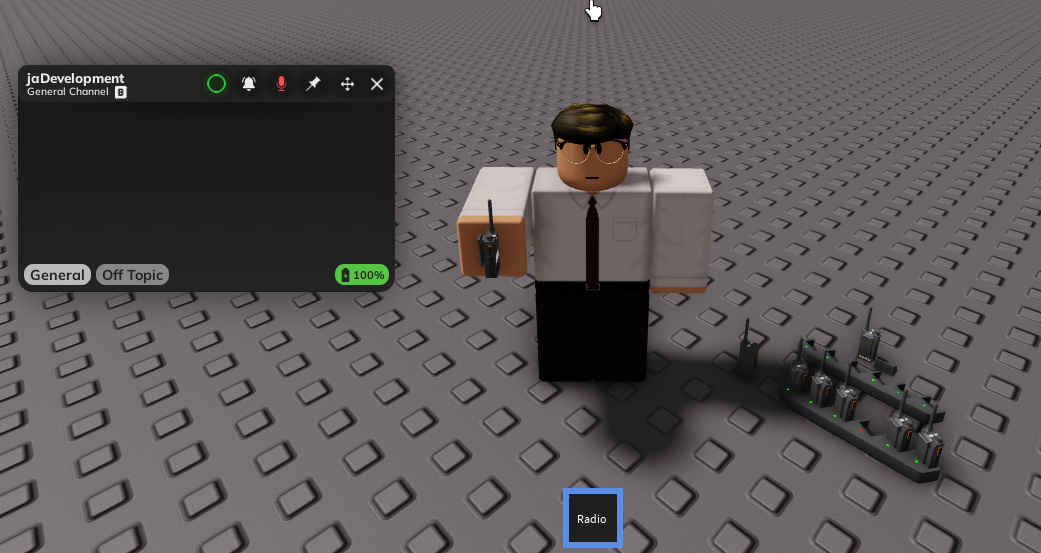
 You should now be able to test and make sure the Radio is working in its current state
 Now, move onto the [Configuration section](/radiolink/configuration) to continue