> ## Documentation Index
> Fetch the complete documentation index at: https://docs.jadevelopment.co.uk/llms.txt
> Use this file to discover all available pages before exploring further.
# Configuration
> Enhance your Radiolink set up by completing the configuration process, and modify how you want your users to interact with the system
## MasterConfig
The MasterConfig is where the majority of Radiolink configuration takes place. You will be able to manage **general settings**, **channels**, **battery**, **alerts**, **group information** and **interface settings**.
**Enter a group name of your choice** (this can be anything)
```python theme={null}
["Group Name"] = "jaDevelopment", --Set to your groups name
```
**You can have as many channels as you wish**, an example of this section is shown below
```python theme={null}
["Channels"] = {
--[[
-Add as many channels as you would like
- The names in this config are not shown on the radio ui which is configured in the dock settings
- Channels cannot have the same names
- Channels cannot have the same ids
]]
["General"] = {
["ChannelId"] = 1 --The id for this channel (similar to radio frequency)
},
["Off Topic"] = {
["ChannelId"] = 2
},
},
```
**To create a new channel**, copy the following and insert it under the previous channel in the configuration:
```python theme={null}
["Staff"] = { -- Name of the channel
["ChannelId"] = 3 -- Different channel ID
},
```
**As I have now created my new channel**, it should look like this:
```python theme={null}
["Channels"] = {
--[[
-Add as many channels as you would like
- The names in this config are not shown on the radio ui which is configured in the dock settings
- Channels cannot have the same names
- Channels cannot have the same ids
]]
["General"] = {
["ChannelId"] = 1 --The id for this channel (similar to radio frequency)
},
["Off Topic"] = {
["ChannelId"] = 2
},
["Staff"] = {
["ChannelId"] = 3
},
},
```
Battery makes the radio able to operate. There are **multiple settings** for this, including how long it takes the Radio’s battery to deplete by one percent and how fast it charges as well. You can also set the default amounts for this.
Radios in the dock that are \*\*not \*\*at 100% are shown with a yellow LED to show they are still charging.
If a radio runs out of battery you will be **unable to send or receive messages**.
```python theme={null}
["Battery"] = {
["Enabled"] = true, --Will the battery charge change
["Charge"] = 100, --The starting charge for the battery (from 0 - 100)
["Drain"] = 3, --How many minutes until 1 percent is drained
["Recharge"] = 1, --How many minutes until 1 percent is charged
},
```
Alerts can be customised to be named differently with **different use cases** they could be used to alert staff of medical emergencies, require security or on call alerts.
```python theme={null}
["Alerts"] = { --Allows staff members to submit alerts across the system
["Enabled"] = true,
["Name"] = "Emergency Alert"
--More settings for alerts are configured in the individual dock settings
},
```
```python theme={null}
["Roles"] = { --How the system determines the users role
["Enabled"] = true,
["Group"] = 14665139 -- (Group ID)
},
```
At the bottom of the **MasterConfig,** there are UI settings where you can **disable statuses**, \*\*notifications \*\*or the **ability to pin the UI.** As well as this you can customise the UI colours with the provided options.
```python theme={null}
["Notification Sounds"] = true, --Allows notification sounds to be on or off
["Pin UI"] = true, --Allows the ui to be pinned
["Statuses"] = true, --Options to change status such as busy, available etc
["Primary Colour"] = Color3.fromRGB(26, 25, 23), --Change this to any colour
["Secondary Colour"] = Color3.fromRGB(35, 35, 35), --Change this to any colour (a slightly darker tone of the Primary colour is ideal)
["Message Colour"] = Color3.fromRGB(35, 35, 35) --Sets the background colour of the radio message
```
## DockConfig
Each dock featured in the Radiolink folder has a \*\*configuration \*\*called 'DockConfig', and is currently set to preset configuration settings. **Customise these options** with the following information that might help you
The whitelist can be**toggled on (true) or off** **(false)**, and supports individual players or groups. You can have an unlimited amount of players and groups. Players can be listed with a mixture of user ids and usernames.
When the whitelist value is set to **false**, anyone can use the radio dock. If you are restricting the radios to groups, or users, please enable this feature by setting it to **true**
**When configuring groups, enter as many role IDs** in the\*\*{}\*\* as you wish, separated by a comma
```python theme={null}
[14665139] = {1, 2, 3, 4, 5, 6, 7, 8, 9, 255},
```
```python theme={null}
["Permissions"] = {
["Whitelist"] = false,
["Users"] = { --Supports usernames and user ids
936285498, --osctrcx
295531036, --AIIAIDAIIIAIAIAIAIIA
37110638, --rfpb
163323741, --comtrlo
},
["Groups"] = { --Add as many groups as you would like and role ids
[14665139] = {255, 254},
}
},
```
```python theme={null}
["Pickup"] = {
["Type"] = "ClickDetector", --ClickDetector or ProximityPrompt
["MaxDistance"] = 10 --How many studs away to pickup a radio
},
```
**ClickDetector**
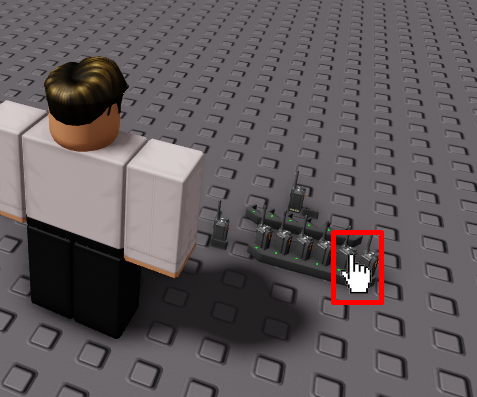 **ProximityPrompt**
!\[Oi\[i[o Avi](/images/oi\[i\[o.avif)
You can specify **what permissions the docks** from that radio has in **each of those channels.** If the dock doesn't have access to that channel you don’t need to list it at all.
*The name of the channel does not need to be the name you set for it in the master config.*
**Default configuration for dock channels and permissions:**
```python theme={null}
["Channels"] = { --This setting does not apply if global channels are enabled
--[[
-Don't include channels that you would like hidden for radios in this dock
-Add as many channels as you would like
-Set the following permission levels for channels:
1. Recieve
2. Send
]]
["General"] = {
["Permissions"] = {"Send", "Recieve"},
["ChannelId"] = 1 --The id you set your channel to in the main config
},
["Off Topic"] = {
["Permissions"] = {"Send", "Recieve"},
["ChannelId"] = 2
},
},
```
Don't include any channels that you would like **hidden** for radios in this dock
To create a new channel **for this dock**, copy the following code or one of the channels from the Channels section:
```python theme={null}
["Staff"] = { -- Channel name
["Permissions"] = {"Send", "Recieve"},
["ChannelId"] = 3 -- Channel id
},
```
**With my new piece of code**, I can add it to the already existing list of channels, so it becomes
```python theme={null}
["Channels"] = { --This setting does not apply if global channels are enabled
--[[
-Don't include channels that you would like hidden for radios in this dock
-Add as many channels as you would like
-Set the following permission levels for channels:
1. Recieve
2. Send
]]
["General"] = {
["Permissions"] = {"Send", "Recieve"},
["ChannelId"] = 1 --The id you set your channel to in the main config
},
["Off Topic"] = {
["Permissions"] = {"Send", "Recieve"},
["ChannelId"] = 2
},
["Staff"] = { -- Channel name
["Permissions"] = {"Send", "Recieve"}, -- Permissions the channel WILL have
["ChannelId"] = 3 -- Channel id
},
},
```
If enabled, the alerts **can be turned off only for radios in one dock** and you can also **specify which channels the alerts go to,** even if the radios in that dock do not have permission to view or send messages in the channels you set. As long as its in the master config, it will function as intended. You can also set it to false instead of a table and it sends it to all channels across the system
**Default configuration for dock alerts**
```python theme={null}
["Alerts"] = {
["Enabled"] = true, --Can radios from this dock utilise the feature?
["Channels"] = {1} --Every channel ID the alerts will send to, separated by a comma
--[[
- The radio does not need any access to any of the channels
- Set to false to broadcast to all channels - ["ChannelId"] = false
]]
},
```
To send alerts from the dock to **all channels**, simply remove all channel IDs from within the {} next to "Channels"
\
**For example:**
```python theme={null}
["Channels"] = false
```
**ProximityPrompt**
!\[Oi\[i[o Avi](/images/oi\[i\[o.avif)
You can specify **what permissions the docks** from that radio has in **each of those channels.** If the dock doesn't have access to that channel you don’t need to list it at all.
*The name of the channel does not need to be the name you set for it in the master config.*
**Default configuration for dock channels and permissions:**
```python theme={null}
["Channels"] = { --This setting does not apply if global channels are enabled
--[[
-Don't include channels that you would like hidden for radios in this dock
-Add as many channels as you would like
-Set the following permission levels for channels:
1. Recieve
2. Send
]]
["General"] = {
["Permissions"] = {"Send", "Recieve"},
["ChannelId"] = 1 --The id you set your channel to in the main config
},
["Off Topic"] = {
["Permissions"] = {"Send", "Recieve"},
["ChannelId"] = 2
},
},
```
Don't include any channels that you would like **hidden** for radios in this dock
To create a new channel **for this dock**, copy the following code or one of the channels from the Channels section:
```python theme={null}
["Staff"] = { -- Channel name
["Permissions"] = {"Send", "Recieve"},
["ChannelId"] = 3 -- Channel id
},
```
**With my new piece of code**, I can add it to the already existing list of channels, so it becomes
```python theme={null}
["Channels"] = { --This setting does not apply if global channels are enabled
--[[
-Don't include channels that you would like hidden for radios in this dock
-Add as many channels as you would like
-Set the following permission levels for channels:
1. Recieve
2. Send
]]
["General"] = {
["Permissions"] = {"Send", "Recieve"},
["ChannelId"] = 1 --The id you set your channel to in the main config
},
["Off Topic"] = {
["Permissions"] = {"Send", "Recieve"},
["ChannelId"] = 2
},
["Staff"] = { -- Channel name
["Permissions"] = {"Send", "Recieve"}, -- Permissions the channel WILL have
["ChannelId"] = 3 -- Channel id
},
},
```
If enabled, the alerts **can be turned off only for radios in one dock** and you can also **specify which channels the alerts go to,** even if the radios in that dock do not have permission to view or send messages in the channels you set. As long as its in the master config, it will function as intended. You can also set it to false instead of a table and it sends it to all channels across the system
**Default configuration for dock alerts**
```python theme={null}
["Alerts"] = {
["Enabled"] = true, --Can radios from this dock utilise the feature?
["Channels"] = {1} --Every channel ID the alerts will send to, separated by a comma
--[[
- The radio does not need any access to any of the channels
- Set to false to broadcast to all channels - ["ChannelId"] = false
]]
},
```
To send alerts from the dock to **all channels**, simply remove all channel IDs from within the {} next to "Channels"
\
**For example:**
```python theme={null}
["Channels"] = false
```