> ## Documentation Index
> Fetch the complete documentation index at: https://docs.jadevelopment.co.uk/llms.txt
> Use this file to discover all available pages before exploring further.
# Installation
> Instructions on how to set up Promptly with your game. Follow for step by step details on how to install the system correctly
## Getting started
You must enable **HTTP Requests** and **API Services** within the Game Settings tab in Roblox studio. This is located under the Security section. Please ensure this is enabled before opening a ticket with our support team
After downloading the product, you will be given a RBXM file. Drag this into the Workspace of your game
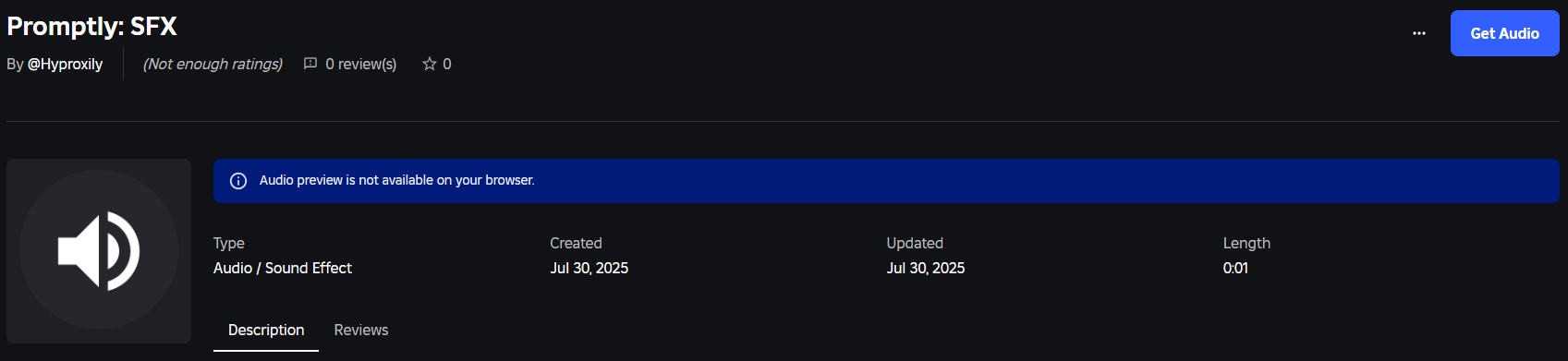
Head to the link below and click the **Get Audio** button to add them to your inventory
[https://create.roblox.com/store/asset/96867813755421](https://create.roblox.com/store/asset/96867813755421)
 Move onto the [Group settings](https://docs.jadevelopment.co.uk/promptly/configuration#group) to continue
Once you have updated your group settings, you will be able to use the system as it is in its current state
Now, continue onto the rest of the [configuration](https://docs.jadevelopment.co.uk/promptly/configuration) process.
Move onto the [Group settings](https://docs.jadevelopment.co.uk/promptly/configuration#group) to continue
Once you have updated your group settings, you will be able to use the system as it is in its current state
Now, continue onto the rest of the [configuration](https://docs.jadevelopment.co.uk/promptly/configuration) process.